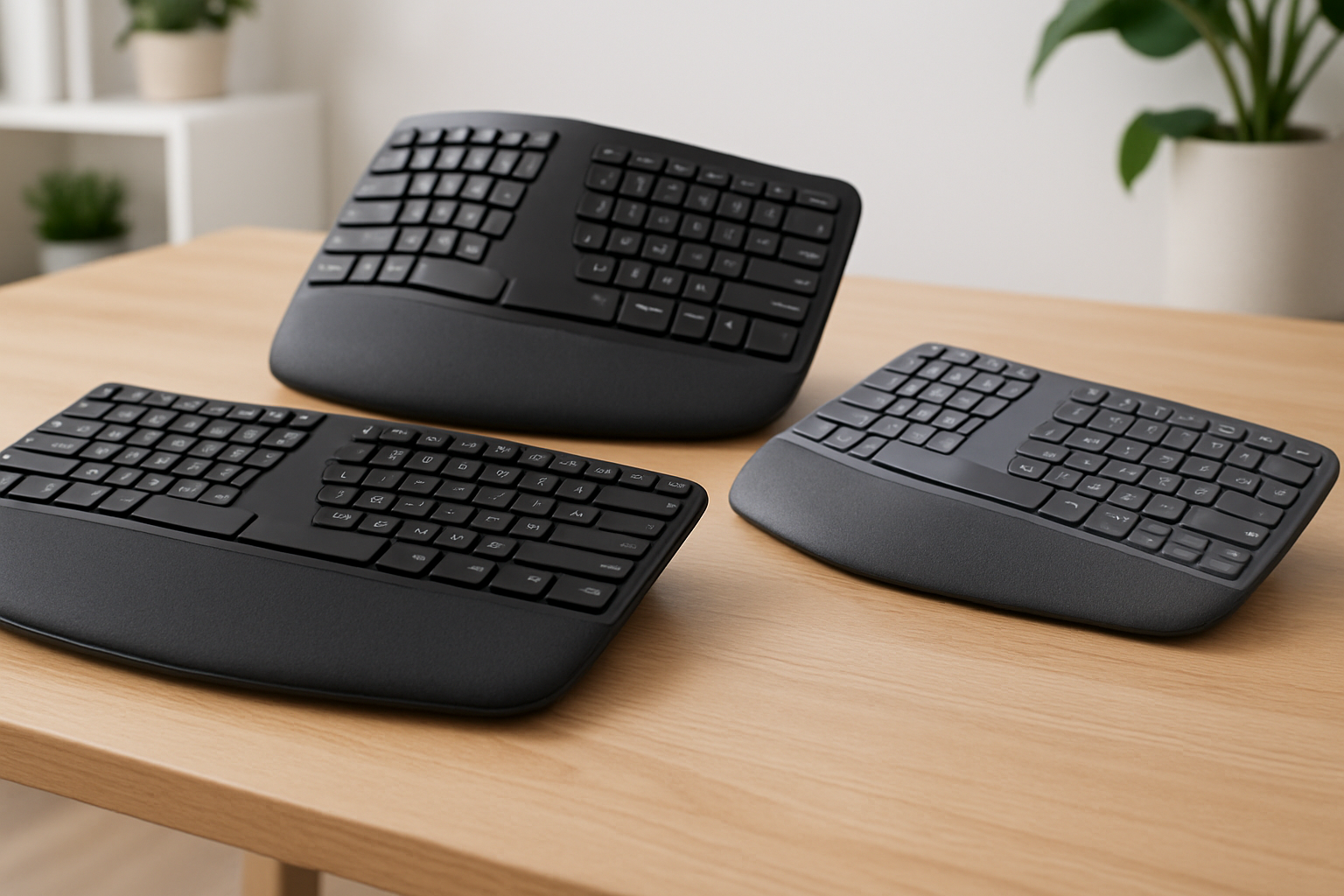
7 Best Ergonomic Keyboards for Home Office
If you spend hours typing every day, the right keyboard can make a real difference. In this guide, we break down the 7 best ergonomic keyboards for home office use—covering split, wave, and contoured designs—so you can reduce strain and stay productive. We compiled this list using publicly available manufacturer information, retailer listings, and broad user feedback to highlight strengths, trade-offs, and who each pick suits best. Prices and availability may change.
- Quick Picks
- Comparison Table
- The Best Ergonomic Keyboards for Home Office
- 1) Logitech Ergo K860 — Best overall
- 2) Microsoft Sculpt Ergonomic Keyboard — Best value
- 3) Kinesis Freestyle2 — Best adjustable split (non-mechanical)
- 4) Kinesis Advantage2 — Best for deep ergonomics (contoured)
- 5) Cloud Nine C989 — Best mechanical split
- 6) Perixx Periboard-612 — Best budget-friendly wireless ergonomic
- 7) Logitech Wave Keys — Best compact wave layout
- Buying Guide: How to Choose the Right Ergonomic Keyboard
- FAQs
- Conclusion
Quick Picks
- Best overall: Logitech Ergo K860 — Comfortable curved design that suits most home office setups. Check price on Amazon
- Best value: Microsoft Sculpt Ergonomic Keyboard — Popular choice for neutral wrist positioning on a budget. Check price on Amazon
- Best adjustable split (non-mechanical): Kinesis Freestyle2 — Flexible split layout for dialing in arm and shoulder width. Check price on Amazon
- Best mechanical split: Cloud Nine C989 — Mechanical keys with a true split design for customization-minded typists. Check price on Amazon
- Best compact wave: Logitech Wave Keys — Space-saving wave layout with an integrated palm rest. Check price on Amazon
Comparison Table
| Product | Style | Best For | Why it stands out | Amazon |
|---|---|---|---|---|
| Logitech Ergo K860 | Curved, split-style top plate | All-day comfort for most users | Gentle curve encourages a more natural wrist angle | Check price on Amazon |
| Microsoft Sculpt Ergonomic Keyboard | Domed, semi-split | Value seekers wanting wrist relief | Popular entry to ergonomic layouts | Check price on Amazon |
| Kinesis Freestyle2 | True split (cabled) | Fine-tuning shoulder width and posture | Separate halves help align arms naturally | Check price on Amazon |
| Kinesis Advantage2 | Contoured key wells | Power users willing to learn a new layout | Deeply sculpted design targets hand/wrist strain reduction | Check price on Amazon |
| Cloud Nine C989 | True split (mechanical) | Heavy typists, coders, creators | Mechanical feel plus an ergonomic split layout | Check price on Amazon |
| Perixx Periboard-612 | Split-style, budget-friendly | Affordable wireless ergonomic option | Wallet-friendly pick with familiar layout | Check price on Amazon |
| Logitech Wave Keys | Wave, compact footprint | Smaller desks and lighter typing | Gentle wave shape and built-in palm support | Check price on Amazon |
The Best Ergonomic Keyboards for Home Office
1) Logitech Ergo K860 — Best overall
The K860 is a widely recommended starting point for home offices because it blends a comfortable curved design, a familiar key layout, and a soft palm support that’s easy to adapt to. The gentle split encourages a more neutral wrist position without a steep learning curve.
- Ideal for: Most home office users seeking an immediate comfort upgrade without a big adjustment period
- Good to know: Curved boards can feel different for the first few days; give yourself time to adapt
Pros
- Comfortable, approachable ergonomic curve
- Integrated palm rest supports relaxed wrists
- Familiar layout for quick onboarding
Cons
- Not as adjustable as true split boards
- Curved shape may take a short adjustment period
2) Microsoft Sculpt Ergonomic Keyboard — Best value
A long-time favorite for budget-conscious buyers, the Sculpt aims to promote a neutral wrist angle with a domed, semi-split design. It’s often suggested as a first step into ergonomics thanks to its straightforward setup and widely available replacement parts.
- Ideal for: Value seekers who want ergonomic benefits without a big spend
- Good to know: Often sold with a separate number pad; check the listing details
Pros
- Budget-friendly entry into ergonomics
- Familiar typing feel for most office users
- Popular, widely supported design
Cons
- Domed layout is fixed; less adjustable than split boards
- Separate number pad may add desk clutter (varies by bundle)
3) Kinesis Freestyle2 — Best adjustable split (non-mechanical)
The Freestyle2 is a true split keyboard with two separate halves connected by a cable, making it easier to align each side with your shoulder width. Many users appreciate the flexibility, and optional accessories (sold separately) may further expand adjustability.
- Ideal for: Users who need fine control over arm and wrist positioning
- Good to know: Split boards can feel unfamiliar at first; give yourself a few days to settle in
Pros
- True split design helps align shoulders and wrists
- Lets you position halves independently for comfort
- Proven brand in ergonomic input devices
Cons
- Learning curve if you’re new to split typing
- Add-ons for more adjustability may increase the total cost
4) Kinesis Advantage2 — Best for deep ergonomics (contoured)
The Advantage2 uses deeply contoured key wells and columnar key groupings designed to reduce finger travel and encourage relaxed hand positioning. It’s a favorite among power users willing to re-learn some muscle memory in exchange for potential long-term comfort.
- Ideal for: Heavy typists, programmers, and users open to a steeper learning curve
- Good to know: Expect an adaptation period; layout differences are more pronounced than standard boards
Pros
- Contoured design minimizes finger movement
- Columnar layout can feel efficient once learned
- Longtime staple in the ergonomic community
Cons
- Higher price than mainstream boards
- Steeper learning curve than wave/semi-split options
- Larger footprint than compact keyboards
5) Cloud Nine C989 — Best mechanical split
The C989 brings mechanical switches to a true split layout. Many typists like the tactile feedback of mechanical keys, and the separated halves allow more natural arm positioning. It’s a compelling pick for users who want both customization and ergonomics.
- Ideal for: Users who prefer mechanical switches and a customizable desk setup
- Good to know: Mechanical keyboards can be louder than typical office boards, depending on switch type
Pros
- True split layout with mechanical key feel
- Allows wide range of hand and arm positioning
- Suits coding and long-form writing
Cons
- Louder than non-mechanical boards (varies by switch)
- Larger overall footprint than one-piece designs
6) Perixx Periboard-612 — Best budget-friendly wireless ergonomic
The Periboard-612 offers a familiar split-style layout at a wallet-friendly price point. It’s often chosen by home office users who want wireless convenience along with a more natural wrist angle.
- Ideal for: Budget-focused buyers who still want ergonomic shaping
- Good to know: Entry-level models may not offer the same materials or software features as premium picks
Pros
- Affordable ergonomic option
- Split-style shape supports a more neutral posture
- Wireless convenience for decluttering your desk
Cons
- Fewer premium touches than higher-end models
- Key feel and durability can vary by unit
7) Logitech Wave Keys — Best compact wave layout
The Wave Keys uses a gentle wave shape and integrated palm support in a relatively compact format. It’s a good fit for smaller desks and for users who want a subtle ergonomic change without a dramatic layout shift.
- Ideal for: Lighter typists, students, and space-limited desks
- Good to know: Wave-style boards are easier to learn than fully split layouts
Pros
- Space-conscious footprint
- Integrated palm rest helps reduce wrist extension
- Easy transition from standard keyboards
Cons
- Not as adjustable as true split boards
- Advanced customization may be limited compared to enthusiast models
Buying Guide: How to Choose the Right Ergonomic Keyboard
Ergonomic design type: wave, semi-split, split, or contoured
- Wave and semi-split boards feel closest to standard layouts, making them easier to learn.
- True split keyboards let you position each half to match your shoulder width and posture.
- Contoured models target finger travel and wrist angles with sculpted key wells, but they require more adaptation.
Adjustability and tenting
- Look for options that let you separate halves or slightly “tent” the keyboard to reduce forearm pronation.
- If you’re new to ergonomics, start with small adjustments and increase gradually.
Key feel and sound
- Mechanical switches provide distinct tactile/audible feedback and can be satisfying for heavy typists.
- Non-mechanical (membrane) boards are typically quieter and more familiar in offices.
- If you share a space, consider noise levels.
Layout and learning curve
- Minor curves are easier to learn; split and contoured layouts may take days or weeks to feel natural.
- Plan an adjustment period. Start with shorter sessions, then ramp up.
Wrist support and posture
- A cushioned palm rest can help keep wrists in a neutral, flat position.
- Keep your chair, desk, and monitor heights aligned to avoid shoulder and neck strain.
Connectivity and compatibility
- Wired setups are straightforward and avoid charging; wireless reduces cable clutter.
- Confirm compatibility with your operating system and any software features you plan to use.
Build quality and maintenance
- Heavier boards may feel more solid on the desk.
- Keyboards are high-touch items—clean periodically to keep keys responsive.
Budget and value
- Entry-level ergonomic models are a great way to test what works for you.
- Premium boards often bring more adjustability and durability. Match the cost to your daily typing needs.
FAQs
Are ergonomic keyboards worth it?
For many people who type for hours a day, ergonomic keyboards can help encourage more neutral wrist and arm positions, which may reduce discomfort associated with long typing sessions. Results vary by person and setup, so it’s wise to choose a design that fits your body and to adjust your chair, desk height, and monitor as well.
How long does it take to adjust to an ergonomic keyboard?
It depends on the design and your typing habits. Wave and semi-split boards may feel natural within a few days, while true split and contoured layouts can take a couple of weeks or more. Gradual practice helps—start with shorter sessions and build up.
Which is better: wave or split?
Neither is universally “better.” Wave boards are easier to learn and often enough for mild discomfort. True split boards allow precise alignment of each half with your shoulders and wrists, which some people find more comfortable over long sessions. Consider your desk space, willingness to learn, and how much adjustability you want.
Do I need a wrist rest?
A palm/wrist rest can help keep your wrists neutral, especially if your desk is high. However, some users prefer no rest to avoid pressure on the wrists. If you use one, aim to rest the heels of your palms rather than the middle of your wrists.
Can an ergonomic keyboard help with pain?
Ergonomic keyboards are designed to encourage more neutral positions, which may help reduce strain for some users. If you’re experiencing pain, consider consulting a qualified healthcare professional. Keyboard changes are just one part of an overall ergonomic setup that also includes chair height, desk height, and monitor positioning.
Conclusion
The best ergonomic keyboard for your home office is the one that fits your body, space, and typing style. For most people, the Logitech Ergo K860 is a comfortable and approachable start. If you want value, consider the Microsoft Sculpt Ergonomic Keyboard. Need maximum adjustability? The Kinesis Freestyle2 or Cloud Nine C989 (for mechanical fans) are strong choices. If you’re ready for deeper ergonomic changes, the Kinesis Advantage2 stands out. On a budget or short on space, the Perixx Periboard-612 and Logitech Wave Keys are worth a look.
Whichever you pick, allow time to adjust and fine-tune your setup. Small changes add up to big comfort gains over months of daily typing.
Prices and availability may change.
- Logitech Ergo K860 — Check price on Amazon
- Microsoft Sculpt Ergonomic Keyboard — Check price on Amazon
- Kinesis Freestyle2 — Check price on Amazon
- Kinesis Advantage2 — Check price on Amazon
- Cloud Nine C989 — Check price on Amazon
- Perixx Periboard-612 — Check price on Amazon
- Logitech Wave Keys — Check price on Amazon
コメント